



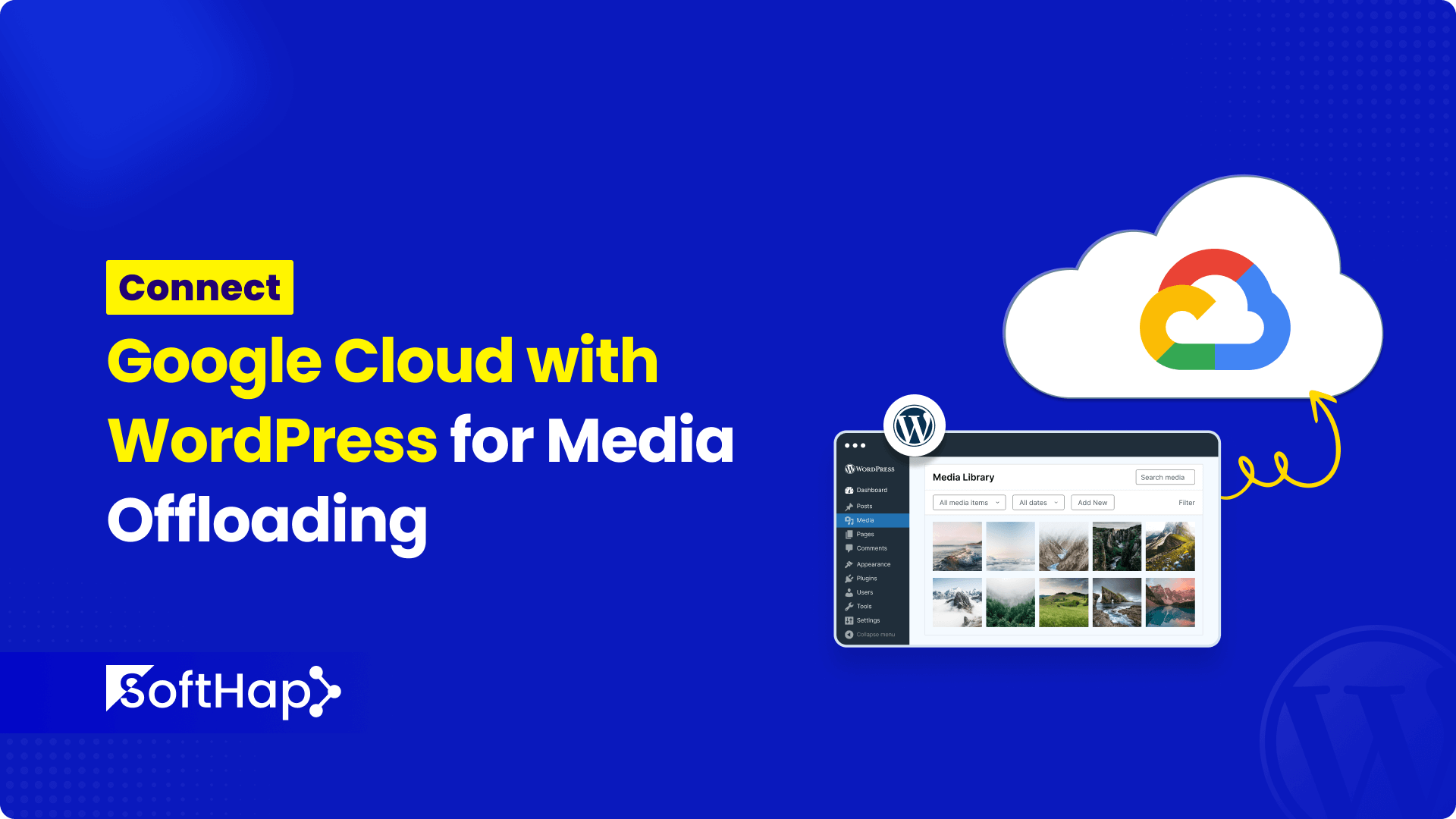
WordPress websites grow fast.
Images, PDFs, videos, and other media files slowly consume server storage, increase backup sizes, and put extra pressure on hosting resources. Over time, this leads to slower performance and higher hosting costs.
To mitigate these issues, utilizing Google Cloud for media offloading can significantly enhance your website’s efficiency. This process involves integrating Google Cloud Storage with your WordPress site, allowing media files to be stored externally while maintaining seamless access. By doing so, you can free up valuable server space, reduce backup sizes, and improve overall site performance. Follow this step-by-step guide to establish a smooth connection to Connect Google Cloud with WordPress for optimal media management.
A modern solution is media offloading, where files are stored in cloud storage instead of your WordPress server.
In this guide, you’ll learn how to connect Google Cloud with WordPress for media offloading, using Next3 Offload, in a safe and scalable way.
What Is Media Offloading in WordPress?
Media offloading in WordPress refers to the practice of storing media files, such as images and videos, on an external cloud storage service, rather than on the local server. This approach not only conserves server resources but also enhances loading times, resulting in a better user experience. By leveraging platforms like Google Cloud Storage, website owners can ensure that their media is securely stored, easily accessible, and efficiently managed. This guide will provide detailed instructions on implementing this solution through Next3 Offload, streamlining your media handling process.
Media offloading refers to storing your WordPress media files in cloud storage, while WordPress continues to reference and display them as normal.
Behind the scenes:
- Media files are uploaded to Google Cloud
- WordPress stores file references, not heavy files
- Media URLs are rewritten automatically
- Your server load is reduced
From a visitor’s perspective, nothing changes.
From a performance perspective, everything improves.
Why Use Google Cloud for WordPress Media Storage?
Utilizing Google Cloud for WordPress media storage offers enhanced reliability, scalability, and security for your media files. This integration not only improves site performance but also ensures seamless access and management of your media assets without burdening your local server.
Google Cloud offers enterprise-grade infrastructure that is reliable, scalable, and fast.
Key Benefits of Google Cloud Media Offloading
- High availability and global infrastructure
- Scales easily as your site grows
- Reduces server disk usage
- Improves page load stability
- Ideal for image-heavy and content-rich sites
For long-term projects, Google Cloud is a future-proof storage option.
What Is Next3 Offload?
Next3 Offload is a WordPress plugin that moves media files from your hosting server to cloud storage while keeping WordPress fully functional.
It handles:
- Automatic media uploads to cloud storage
- Bulk offloading of existing media
- Safe media URL rewriting
- Compatibility with WooCommerce, WPML, and page builders
Instead of manually managing cloud links, Next3 Offload automates everything.
What You Need Before Getting Started
Before connecting Google Cloud to WordPress, make sure you have:
- A WordPress website
- Admin access to WordPress
- A Google Cloud account
- Next3 Offload installed and activated
No coding knowledge is required.
Step 1: Create a Google Cloud Project
- Log in to the Google Cloud Console
- Click Select Project → New Project
- Give your project a name
- Create the project
This project will be used only for WordPress media storage.
Step 2: Enable Required Google Cloud APIs
- Open your Google Cloud project
- Go to APIs & Services → Library
- Enable the required storage-related API (for example, Google Drive API or Cloud Storage API, depending on your setup)
This allows WordPress to communicate securely with Google Cloud.
Step 3: Create a Service Account
A service account allows WordPress to access Google Cloud securely.
- Go to IAM & Admin → Service Accounts
- Click Create Service Account
- Enter a name and description
- Proceed without assigning unnecessary roles
This account acts as a secure bridge between WordPress and Google Cloud.
Step 4: Generate a JSON Key File
- Open the created service account
- Go to the Keys tab
- Click Add Key → Create New Key
- Select JSON
- Download the key file
Keep this file safe. It grants access to your cloud storage.
Step 5: Install and Activate Next3 Offload
- Log in to WordPress
- Go to Plugins → Add New
- Install and activate Next3 Offload
- Open the Next3 Offload menu in the dashboard
This is where you’ll connect Google Cloud to WordPress.
Step 6: Connect Google Cloud to WordPress
- Go to Next3 Offload → Storage Providers
- Select Google Cloud
- Upload the downloaded JSON key file
- Save the settings
Once connected, Next3 Offload verifies access and prepares cloud storage for media uploads.
Step 7: Enable Automatic Media Offloading
To ensure new uploads are handled automatically:
- Go to Next3 Offload → Settings
- Enable Auto Offload New Media
- Enable Rewrite Media URLs
- Save changes
From now on, every uploaded image or file is automatically stored in Google Cloud.
Step 8: Offload Existing WordPress Media
To move already uploaded media:
- Go to Next3 Offload → Media Offload
- Click Bulk Offload Media
- Start the process
Next3 Offload processes files in batches to avoid server overload.
Step 9: Verify Media Delivery
After setup:
- Open a blog post or page
- Inspect an image URL
- Confirm it loads from Google Cloud
Your site will look the same, but files are no longer served from your hosting server.
Is This Setup Safe for SEO?
Yes.
Media offloading improves:
- Page speed
- Core Web Vitals
- Server response time
- Stability during traffic spikes
Search engines care about performance and reliability, not where files are stored.
Common Mistakes to Avoid
- Deleting the JSON key file
- Disabling URL rewriting
- Using multiple offload plugins together
- Forgetting to clear cache after setup
Following the steps carefully prevents these issues.
Who Should Use Google Cloud Media Offloading?
Google Cloud Media Offloading is ideal for WordPress users seeking enhanced performance and storage efficiency. It benefits websites with high media usage, such as e-commerce platforms, blogs with rich visual content, and organizations needing scalable solutions.
This setup is ideal for:
- Content-heavy blogs
- WooCommerce stores
- Business websites with downloads
- Agencies managing multiple sites
- Growing WordPress platforms
If storage or performance is becoming a concern, offloading is a smart move.
Final Thoughts
Connecting Google Cloud with WordPress for media offloading is one of the most effective ways to improve performance and scalability. Implementing this solution not only enhances your website’s efficiency but also ensures a seamless user experience. By leveraging Google Cloud, WordPress users can effectively address storage concerns and optimize media delivery.
With Next3 Offload, the entire process becomes automated, safe, and WordPress-native.
Your server stays light.
Your site stays fast.
Your media scales effortlessly.
To connect Google Cloud with WordPress for media offloading, create a Google Cloud project, enable required APIs, generate a service account JSON key, and connect it using Next3 Offload. Media files are stored in Google Cloud while WordPress continues working normally.





Comments
Congratulations, you have the opportunity to be the first commenter on this article.
Have a question or suggestion? Please leave a comment to start the discussion.