



If your WordPress site is growing, your media library is probably growing even faster. Images, videos, PDFs, backups, and other uploads quickly consume server storage and slow down your site. This is one of the most common performance bottlenecks WordPress site owners face.
At SoftHap, we focus on practical, scalable WordPress optimization. One of the most effective upgrades you can make is offloading WordPress media to Wasabi Cloud using Next3 Offload.
In this in-depth guide, you’ll learn:
- What WordPress media offloading is and why it matters
- Why Wasabi Cloud is an excellent storage choice
- How Next3 Offload simplifies the entire process
- A step-by-step setup walkthrough
- Best practices for performance, cost savings, and scalability
This guide follows the same proven structure as advanced WordPress performance tutorials, tailored for SoftHap readers who want real, measurable results.
What Is WordPress Media Offloading?
WordPress media offloading is the process of storing your media files (images, videos, PDFs, etc.) on external cloud storage instead of your web server.
Instead of loading media from:
yourwebsite.com/wp-content/uploads/Your site loads media from:
cloud-storage-domain.com/your-bucket/Your WordPress site still looks the same, but the heavy lifting is handled by cloud infrastructure.
Why Media Files Slow Down WordPress Sites
Media files are often the largest assets on a WordPress site.
Common problems include:
- Limited hosting disk space
- Slower page load times
- High CPU and I/O usage
- Expensive hosting upgrades
- Difficult backups and migrations
As traffic grows, these issues compound quickly.
Why SoftHap Recommends Cloud Media Offloading
From a performance and scalability perspective, offloading media is one of the highest ROI optimizations you can make.
Benefits of Media Offloading
- Reduced server storage usage
- Faster page load times
- Improved Core Web Vitals
- Lower hosting costs
- Better scalability under traffic spikes
This is especially important for:
- Content-heavy blogs
- WooCommerce stores
- Membership sites
- High-traffic marketing websites
Why Choose Wasabi Cloud for WordPress Media?
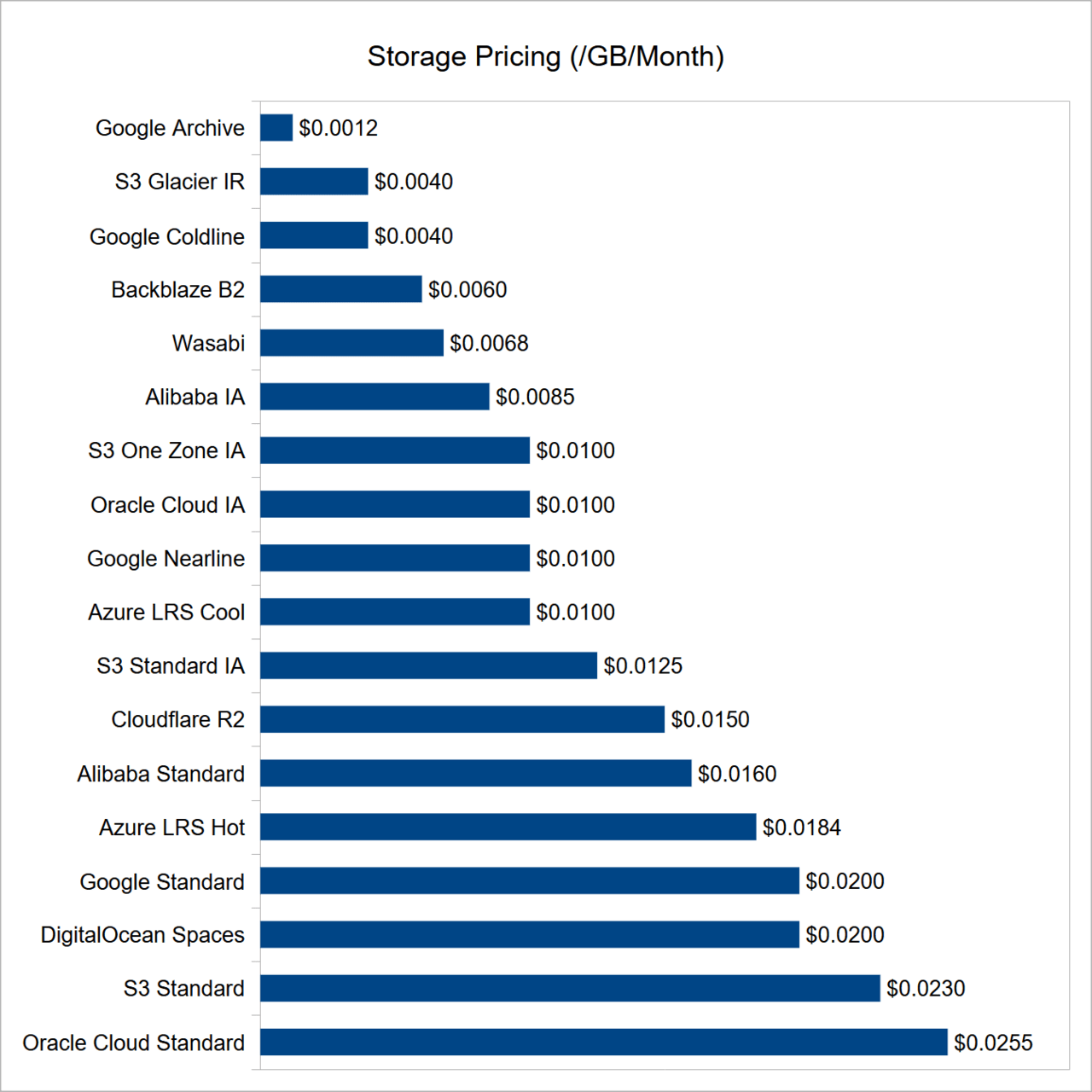
Wasabi is an S3-compatible cloud storage provider designed for predictable pricing and high performance.
Key Advantages of Wasabi
- No egress (download) fees
- Simple, flat pricing
- S3 API compatibility
- High durability and reliability
- Ideal for static assets like images and videos
For WordPress users, this combination makes Wasabi a cost-effective alternative to traditional cloud providers.
Why You Need a Plugin to Offload WordPress Media
WordPress does not natively support cloud media offloading.
Manually uploading files to cloud storage breaks:
- Media URLs
- Thumbnails
- Responsive images
- Plugin compatibility
That is why a dedicated offloading plugin is essential.
Introducing Next3 Offload
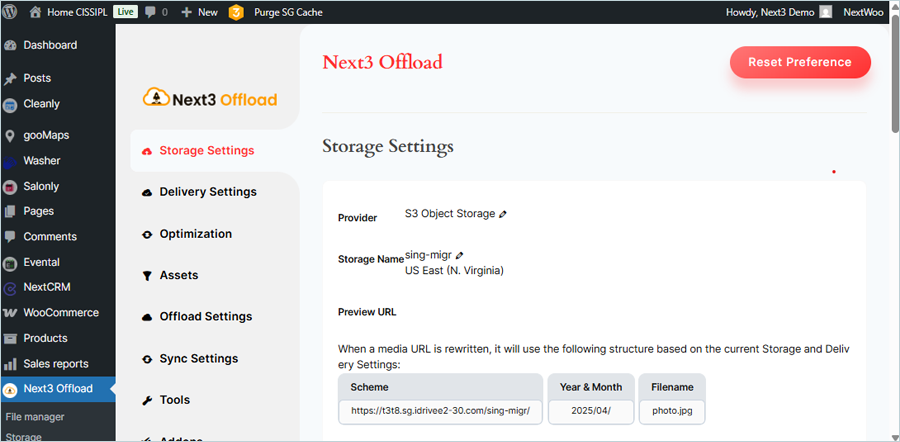
Next3 Offload is a WordPress media offloading plugin built for performance, reliability, and flexibility.
It allows you to:
- Offload WordPress media to Wasabi automatically
- Rewrite media URLs on the fly
- Offload existing media in bulk
- Keep WordPress fully functional
- Maintain compatibility with themes and plugins
At SoftHap, we recommend Next3 Offload because it focuses on real-world WordPress performance, not just storage relocation.
How Next3 Offload Works (High Level)
- Media is uploaded to WordPress
- Next3 Offload sends the file to Wasabi
- File URLs are rewritten to load from Wasabi
- Optional: local copies are removed
- WordPress continues to function normally
The result is a faster, lighter WordPress site.
Step-by-Step: Offloading WordPress Media to Wasabi with Next3 Offload
Step 1: Create a Wasabi Account
Sign up for a Wasabi Cloud account and access the dashboard.
Once logged in, you can manage:
- Storage buckets
- Access keys
- Regions
- Permissions
Step 2: Create a Wasabi Storage Bucket
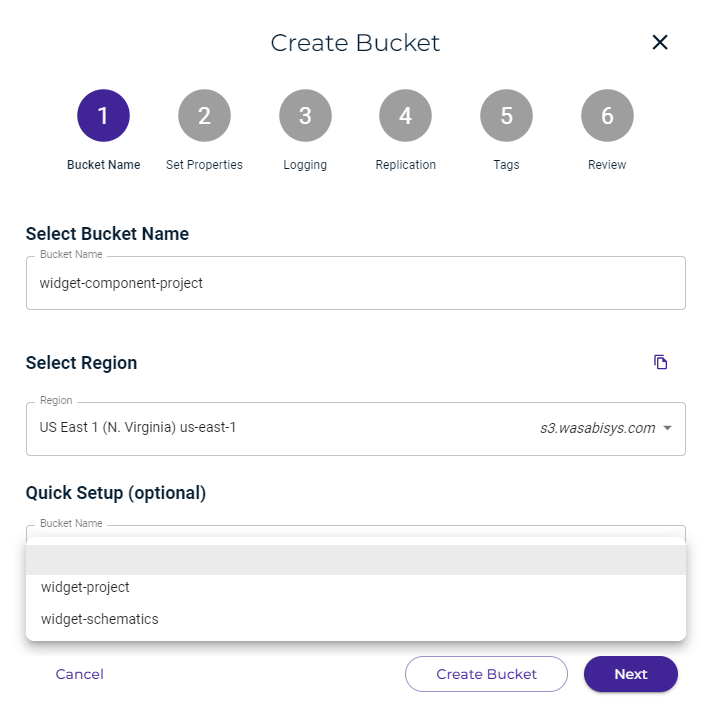
Choose:
- A unique bucket name
- A region closest to your audience
Buckets are where your WordPress media files will live.
Step 3: Generate Wasabi Access Keys
Wasabi uses access keys for authentication.
You will need:
- Access Key ID
- Secret Access Key
Keep these secure. They allow controlled access to your bucket.
Step 4: Install and Activate Next3 Offload
From your WordPress admin dashboard:
- Install the Next3 Offload plugin
- Activate it
- Open the plugin settings
Step 5: Connect Wasabi to Next3 Offload
Inside Next3 Offload:
- Select Wasabi as your storage provider
- Enter your access keys
- Choose your bucket and region
Once saved, the connection is established.
Step 6: Configure Offloading Settings
You can control:
- Automatic offloading for new uploads
- URL rewriting behavior
- Whether to keep or remove local files
- Folder structure and paths
SoftHap recommends starting by keeping local files until everything is verified.
Step 7: Offload Existing Media

Next3 Offload allows bulk offloading of existing media.
This ensures:
- Old images benefit from cloud delivery
- Storage usage drops immediately
- Performance improves across the entire site
Step 8: Verify Media in Wasabi
After offloading:
- Check your Wasabi bucket
- Confirm files are present
- Load pages on your website
- Ensure images and media display correctly
Once confirmed, you can safely remove local copies if desired.
Performance Benefits You Can Expect
Faster Load Times
Media is served from an optimized cloud infrastructure.
Lower Server Load
Your hosting server handles fewer file requests.
Improved Core Web Vitals
Lighter pages improve LCP and overall performance scores.
Better Scalability
Traffic spikes no longer overload your server.
Cost Benefits of Using Wasabi + Next3 Offload
Traditional hosting storage is expensive and limited.
With Wasabi:
- You pay predictable storage costs
- No surprise bandwidth fees
- Easier long-term scaling
Next3 Offload ensures you actually benefit from these savings without breaking WordPress.
SEO Advantages of Media Offloading
Google rewards fast websites.
Media offloading helps by:
- Improving page speed
- Reducing server response times
- Enhancing mobile experience
For content-driven sites, this directly impacts rankings.
Compatibility with WordPress Ecosystem
Next3 Offload works smoothly with:
- WooCommerce
- Page builders
- Caching plugins
- CDN integrations
- Multilingual plugins
This is critical for real-world WordPress sites.
Best Practices from SoftHap
- Always back up before bulk offloading
- Test on staging first if possible
- Start with local copies enabled
- Monitor site performance after migration
- Combine with caching and CDN for the best results
Common Mistakes to Avoid
- Deleting local files before testing
- Misconfigured bucket permissions
- Using incorrect regions
- Skipping bulk migration
Next3 Offload minimizes these risks with clear settings and logs.
Who Should Use This Setup?
This setup is ideal for:
- Bloggers with large media libraries
- WooCommerce stores
- Agencies managing multiple sites
- Membership platforms
- High-traffic WordPress businesses
If your site relies heavily on media, offloading is no longer optional.
Why SoftHap Recommends Next3 Offload
At SoftHap, we evaluate tools based on:
- Performance impact
- Reliability
- Ease of use
- Scalability
Next3 Offload consistently delivers on all four.
It is not just a storage connector. It is a WordPress performance optimization tool.
Final Thoughts
Offloading WordPress media to Wasabi Cloud is one of the smartest optimizations you can make as your site grows.
By combining:
- Wasabi’s affordable, high-performance storage
- The automation and reliability of Next3 Offload
You create a WordPress setup that is faster, cheaper to run, and ready to scale.
For SoftHap users focused on long-term WordPress performance, this approach is not a workaround. It is a best practice.
If your WordPress site is slowing down due to media files, now is the right time to offload, optimize, and future-proof your website.







Comments
Congratulations, you have the opportunity to be the first commenter on this article.
Have a question or suggestion? Please leave a comment to start the discussion.