



Does your website take time to load? Increasing bounce rate and frustrating the customer? It happens when you use large image files on the site.
Then, what is the solution? No worries, there is a smart solution for this.
Bulk image compression helps reduce file sizes without losing quality, making your site faster and more efficient.
No matter if you’re running a blog, an online store, or a portfolio. Bulk image optimization saves time and improves performance.
In this guide, we’ll cover everything you need to know about bulk image optimization. From how to bulk compress images on WordPress, best practices, tools, and plugins to load pages faster.
Let’s get started
Why Bulk Image Compression is Important for WordPress
Image compression in bulk helps reduce image file size without losing quality. It improves users’ experience by faster loading websites and boosting SEO rankings. Here is why it is important:
- Fast-loading website
- Improved SEO rankings
- Reduced server space and hosting costs
- Better mobile experience
- Enhance user experience
Understanding Image Compression
Image compression is the process of reducing an image’s file size without losing quality. It improves website performance by decreasing website loading times and saving server space. There are two main types of image compression.
- Lossless Compression: It reduces file size while maintaining image details intact. This means high-quality images without quality loss that can be edited later. It is also called reversible compression. PNG and TIFF formats use this type of compression. It is ideal for web use, an aspiring photographer, or a seasoned pro.
- Lossy Compression: It reduces file size by permanently removing some details. It makes the image much smaller, and there may be a slight drop in quality. But it is not always immediately noticeable. If you look closely, you may notice differences between compressed and non-compressed images. JPEG, JPEG 2000, WebP, MP3, and TIFF formats use this type of compression. It is suitable for blogs, portfolios, and eCommerce sites.
Steps to Bulk-Compress Images Using a Plugin
Get the Next3 Offload plugin from its official page.
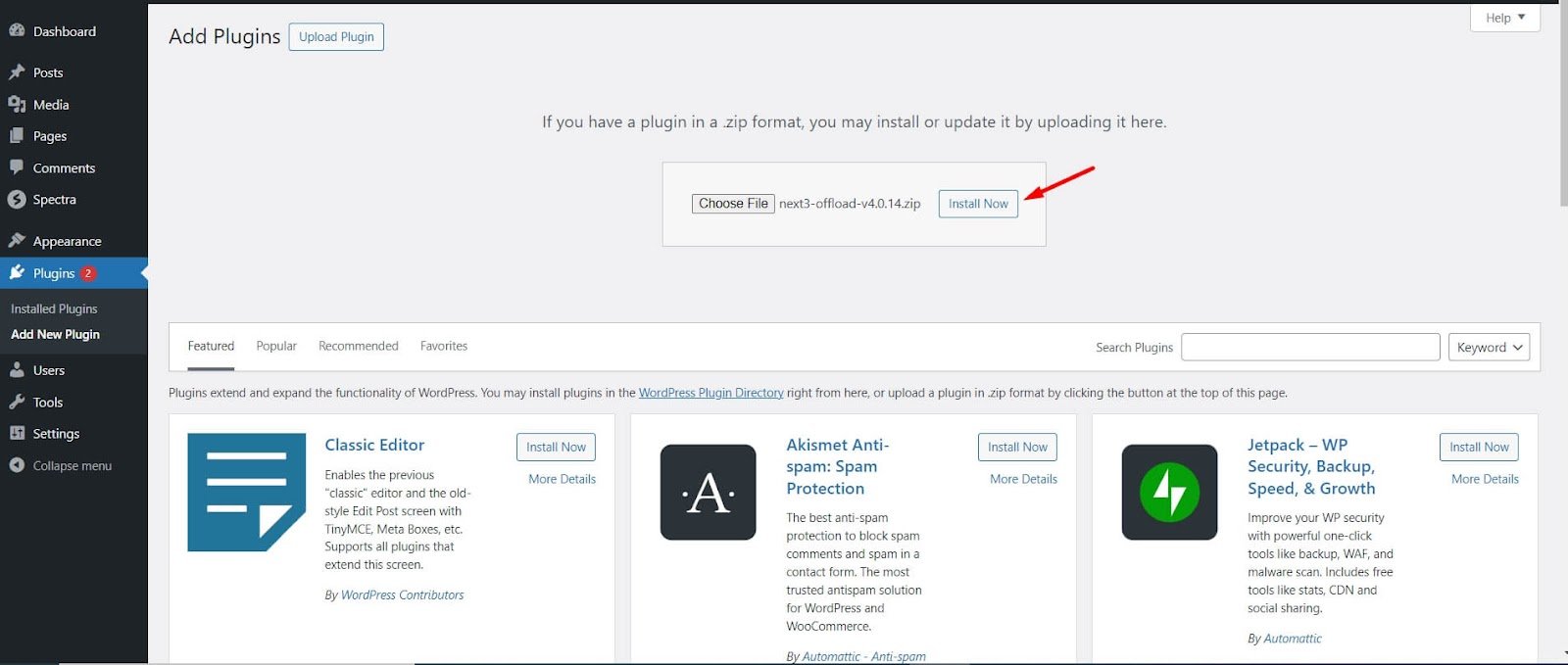
Log in to your WordPress admin dashboard. Navigate to the Plugins section.
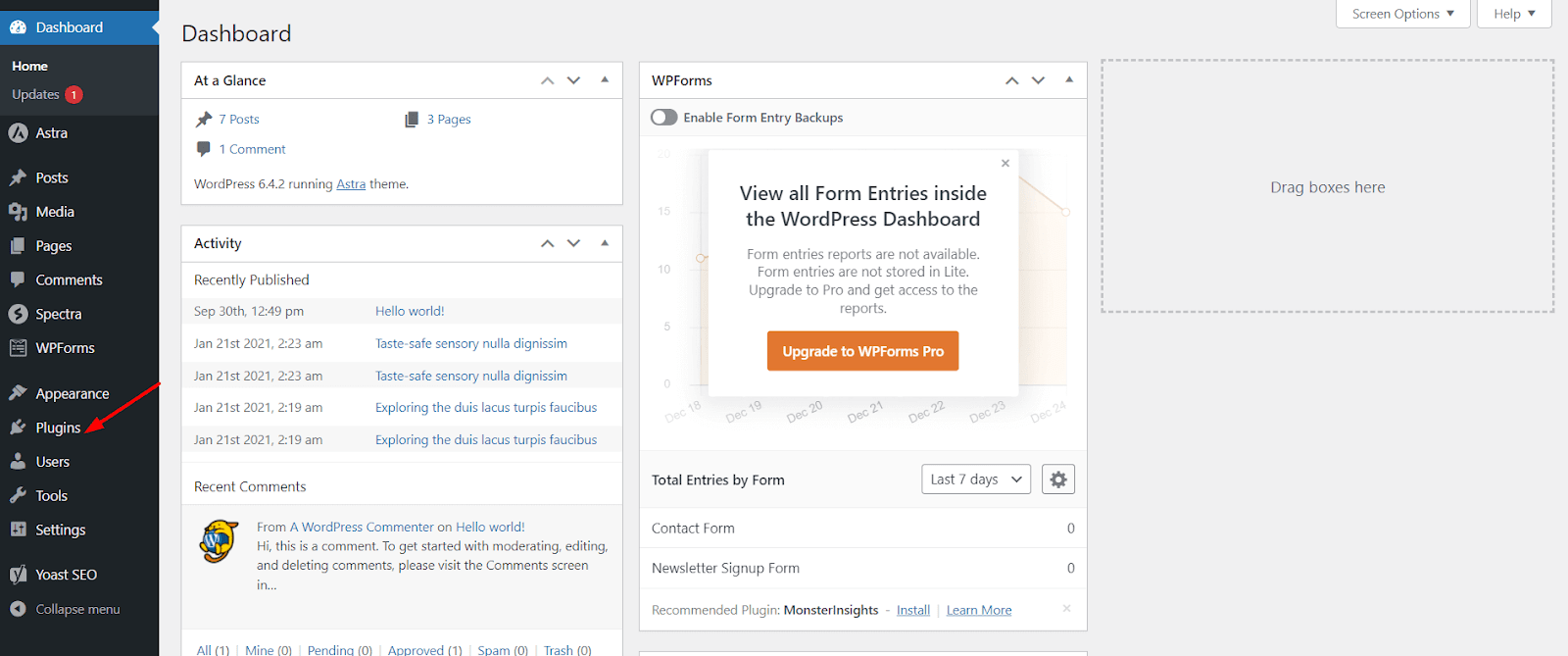
Now select the Add New Plugin button.
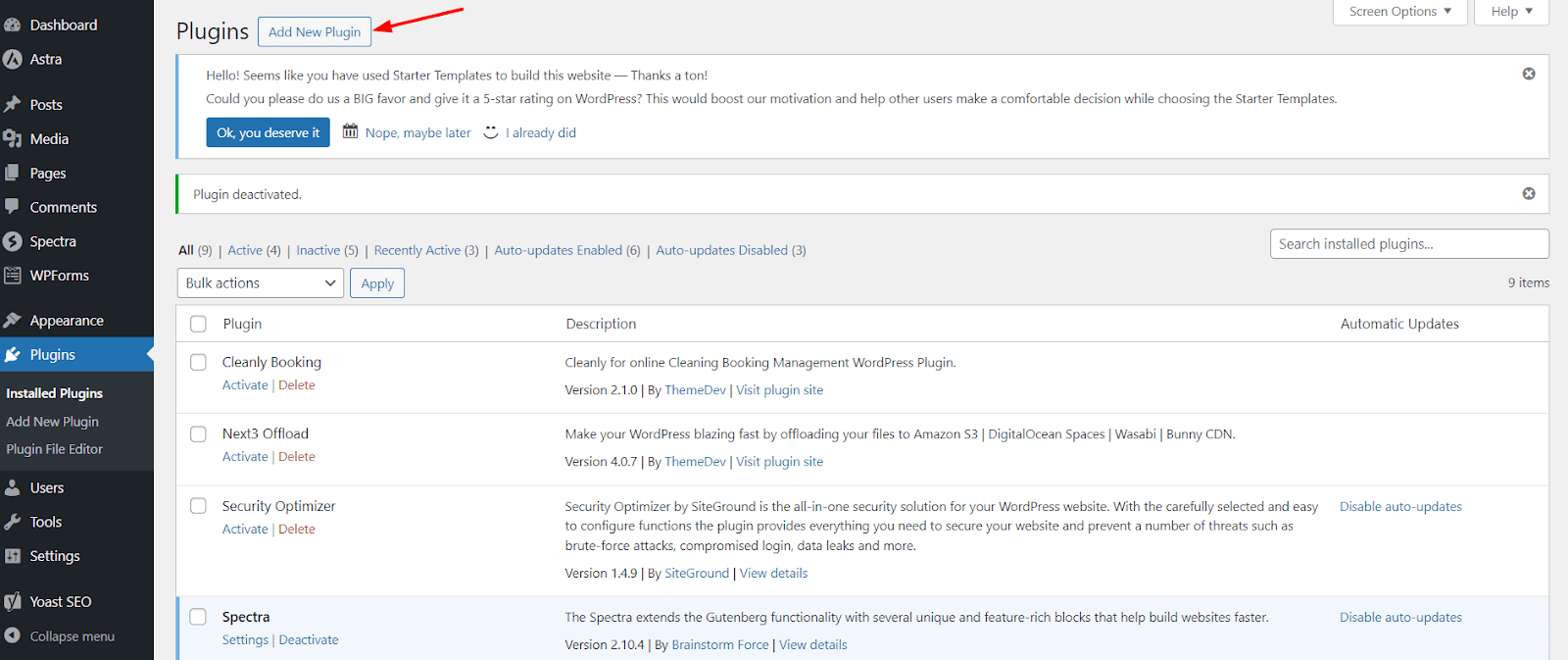
Click on the Upload Plugin option.
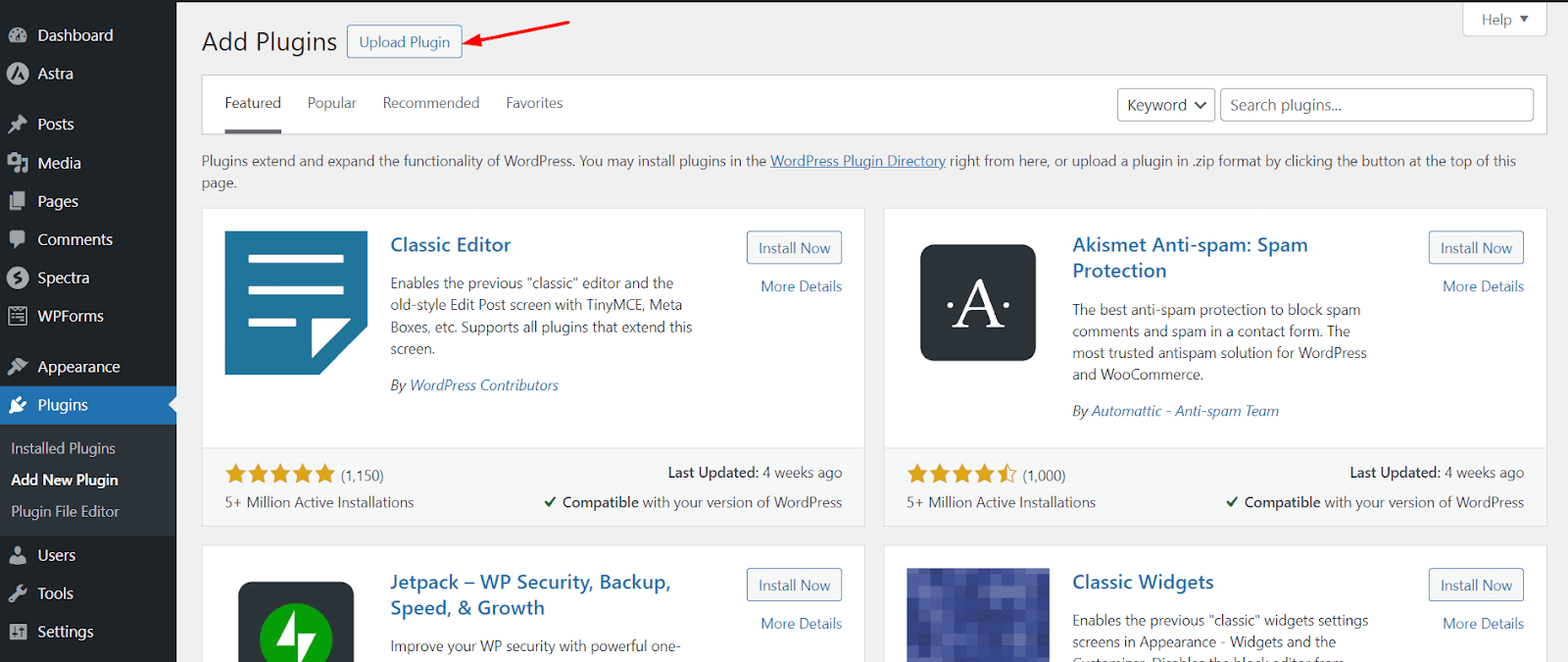
Now, click on the Choose File option.
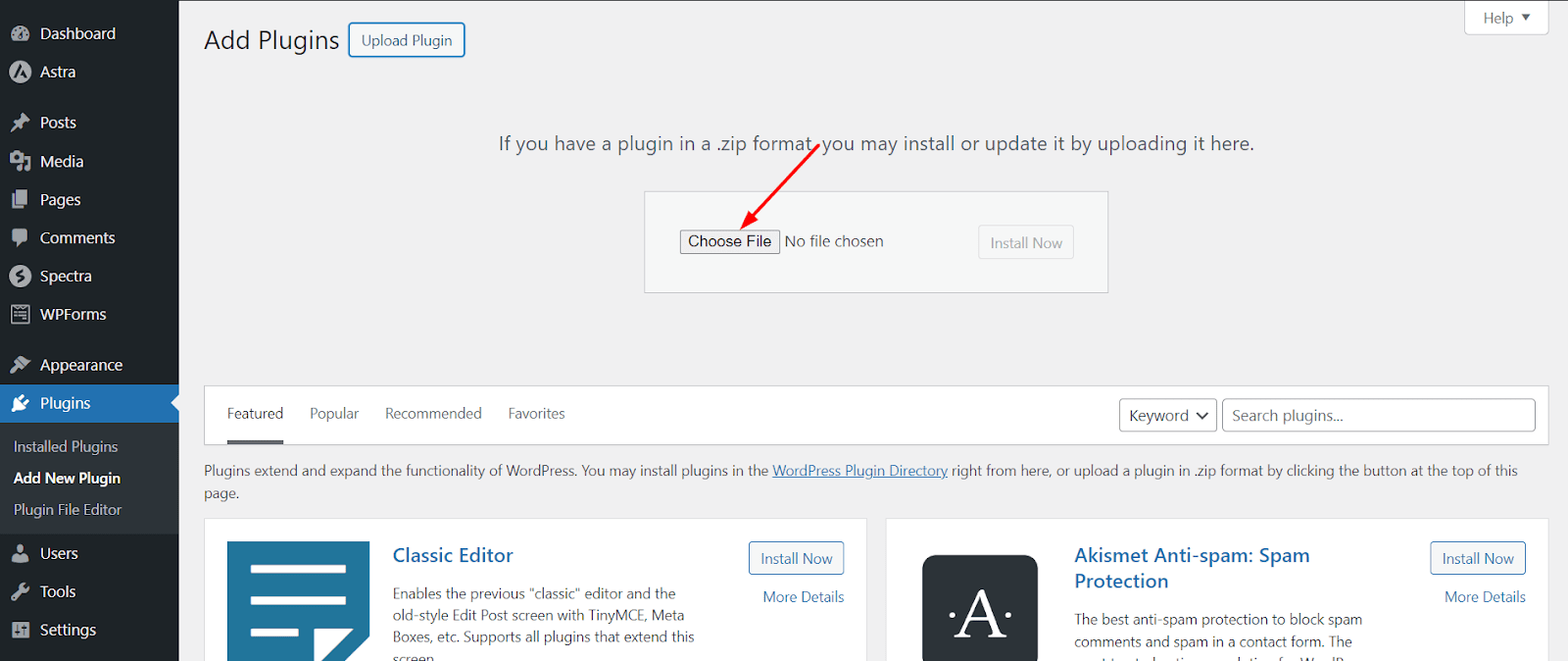
Select your downloaded Next3 Offload file and click on the Install Now button. (Here is the complete installation process).
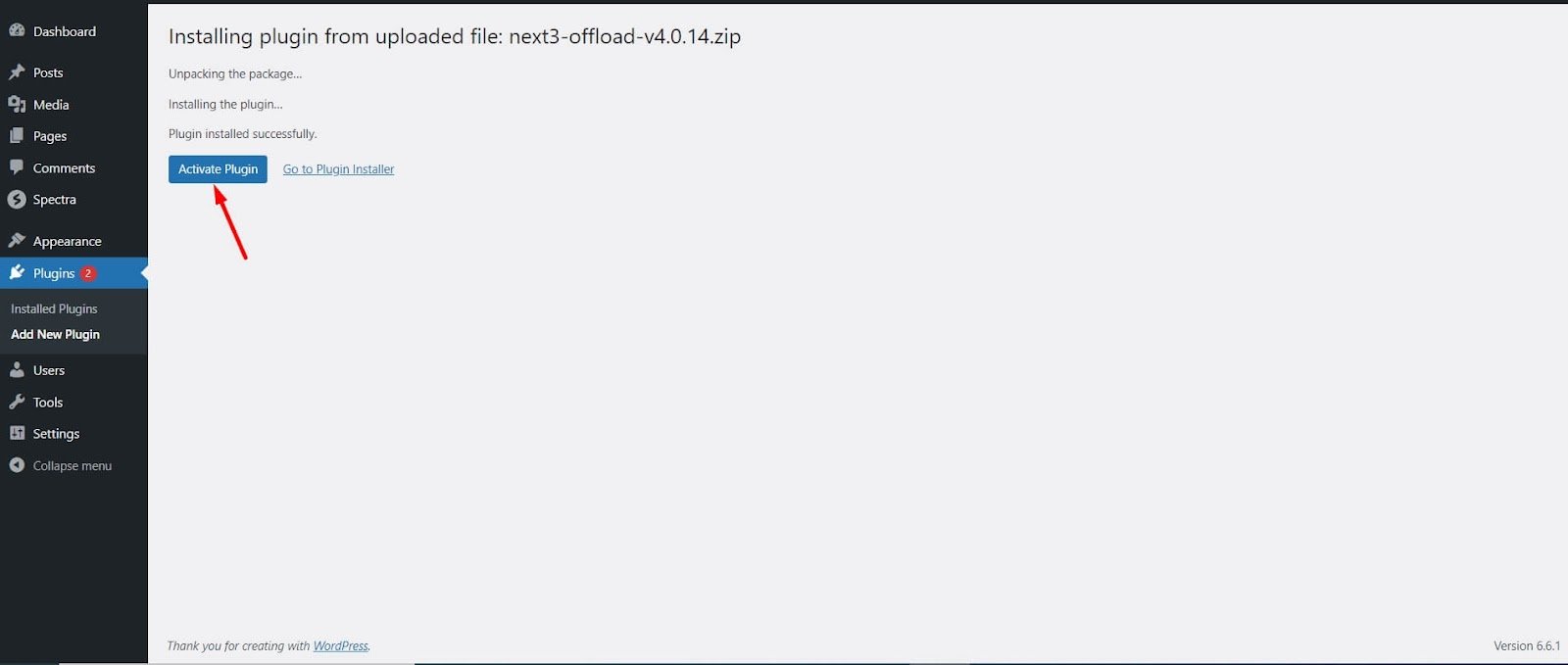
Now, activate the plugin by clicking on the Activate Plugin button.
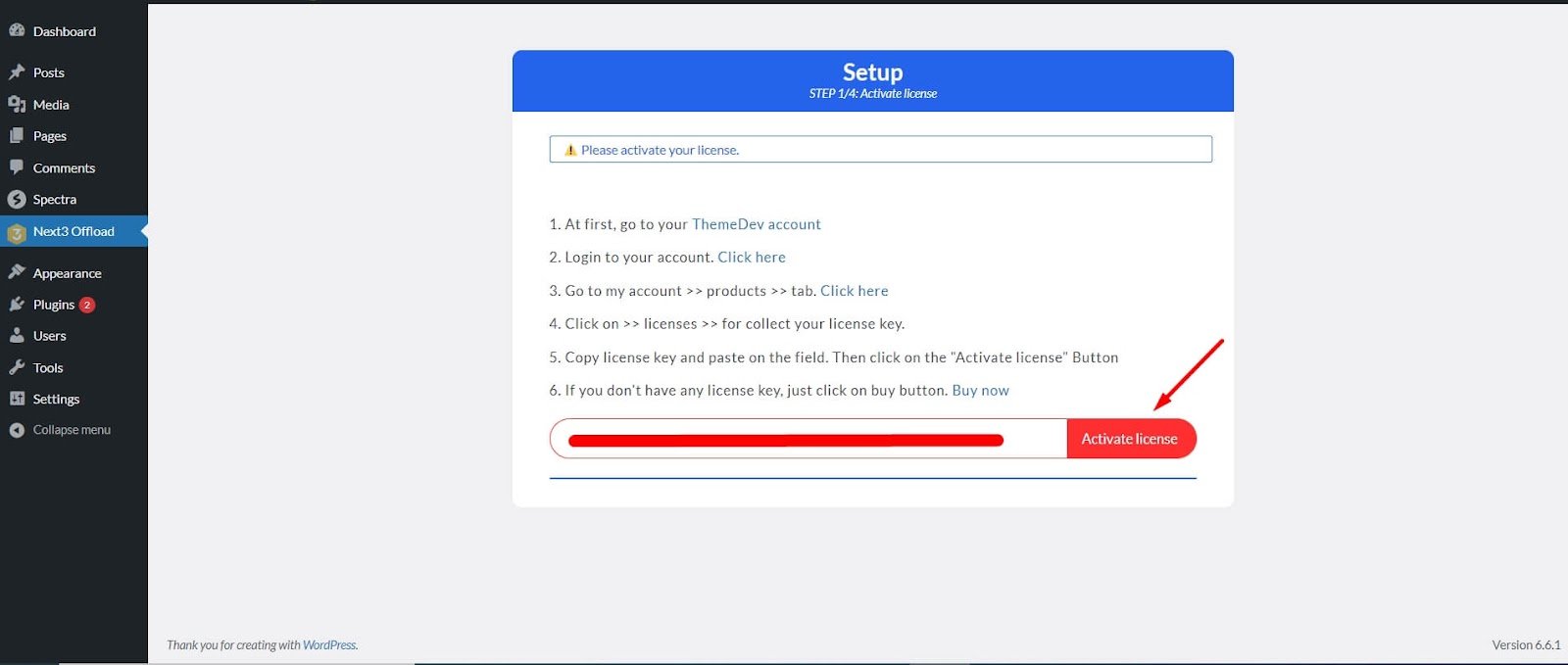
Now, activate the license by entering your license key in the provided field. Then, click Activate License.
Once the installation and activation process is completed, go to the Next3 Offload dashboard. There, you’ll need to set up all the essential features and settings.
Compress Image Size as Needed.
Next3 Offload has an awesome feature to compress your images from 25% to up to 85%. From the settings Next3 Offload >> Optimization. You can also backup all the original images and set the image width easily.

Next3 Offload vs. Other WordPress Image Compression Plugins
Let’s first discuss the top contenders: Next3 Offload and WP Offload Media. Though both have the same feature, like offloading media files to the cloud, but here Next3 Offload is the winner because it has more features, better pricing, and lifetime plans than WP Offload Media.
1. No Limits on Media File Offloading
Next3 Offload allows unlimited media file offloading, while WP Offload Media offers limited offloading based on the pricing tier.
2. Supports 20+ S3 Compatible Object Storage
Next3 Offload supports over 20+ S3-compatible object storage, such as Bunny CDN, Wasabi Cloud, Cloudflare R2, and more. While WP Offload Media supports a handful of storage options like Amazon S3, DigitalOcean Spaces, and Google Cloud Storage
3. Lifetime Pricing and Plan
Next3 Offload has a lifetime pricing plan; on the other hand, WP Offload Media’s pricing plans are limited.
4. WebP Conversion and Restoration
Next3 Offload has a great feature, WebP conversion and restoration. Which means you can compress image size without losing quality and restore the original format if needed. But WP Offload Media does not have these features.
5. Bulk Offloading Media Files
Next3 Offload lets you offload individual media files and the entire media library, but WP Offload Media focuses mainly on bulk offloading.
6. Database Optimization
Next3 Offload has a fantastic feature for database optimization. It helps you clean up post revisions, trashed content, spam comments, and expired transients to keep your WordPress site running smoothly. But WP Offload Media does not have such options.

Next3 Offload vs. WP Optimize vs. WP Rocket
Next3 Offload not only offloads media files to the cloud but also compresses images before offloading. It also has a database optimization option. WP Optimize mainly focuses on database optimization. It does not have media offloading and cloud storage options.
WP Rocket is a premium caching plugin that is designed to boost your site’s speed. It minimizes CSS & JS files for faster delivery and enables lazy loading. WP Rocket doesn’t focus on media offloading to the cloud and advanced image compression, WebP conversion like Next3 Offload.
Why Choose Next3 Offload Over Others?
Next3 Offload is an all-in-one plugin that converts images to WebP format, compresses without losing quality, and offloads WordPress media files to over 20+ S3-compatible object storage. Here’s why so many site owners love using it:
All-in-one solution: No need to install separate plugins for CDN or media offloading.
Migration to Next3 Offload: Migration to Next3 Offload is so simple. Users can seamlessly switch between cloud to cloud and can also use all media files that are previously uploaded by WP Offload Media without downloading and re-uploading.
Easy image optimization: Next3 Offload plugin has a great feature to compress and convert images to WebP before offloading to the cloud. It automatically optimizes the database weekly.
Budget-friendly and flexible: Next3 Offload has a budget-friendly lifetime pricing plan. So, you get two in one, speed and savings
Faster websites: Next3 Offload optimization features help websites load faster. It compresses and converts images to WebP before offloading to the cloud. Thus, users get a better experience and faster loading speed.
Safe and secure: You don’t have to worry about your original files. Because everything stays backed up in your media library.
Additional Tips for Optimizing Images on WordPress
Here are some additional tips to enhance your image optimization process more easily on WordPress.
1. Choose the Right Image Format
Choosing the correct image format helps your website load faster.
- WebP keeps the balance between quality and file size.
- JPEG is great for photos and detailed images.
- PNG is ideal for transparent images.
- SVG is perfect for logos and icons (vector graphics).
2. Maintain the Original Aspect Ratio
When resizing or scaling an object’s original aspect ratio, keep the width and height of an image and video aspect ratio consistent so they won’t look distorted, stretched, or squished.
3. Resize Images Before Uploading
Large images make your pages load slowly. It is a wise decision to resize the images before uploading. You can do this easily by using tools like Next3, Offload, TinyPNG, Squoosh, or even Photoshop. Recommended image sizes are:
- Blog Post Image: 1200px width
- Featured Image: 1200px–1600px width
- Thumbnail: 150px–300px width
4. Enable Lazy Loading
Lazy loading is a strategy that helps improve a website’s performance. It defers the loading of non-critical or non-visible content, such as images, scripts, or videos, before loading all elements. This means that below-the-fold images won’t load until users scroll down the page. The best part is that WordPress 5.5 or later has built-in lazy-loading functionality. However, you don’t have more control over it, so you have to use the plugin.
5. Use a Content Delivery Network (CDN)
A content delivery network (CDN) stores images in multiple locations worldwide. It does not matter where your visitors are. It serves images from the server closest to them. Some of the popular CDNs you can use are:
- Cloudflare
- BunnyCDN
- KeyCDN
- Amazon S3 (via Next3 Offload for seamless integration with WordPress)
6. Use Adaptive Images for Mobile Devices
Using responsive images improves mobile performance and provides users with a faster browsing experience. Plugins like Adaptive Images or Perfect Images can automatically adjust to fit different screen sizes, ensuring images look sharp and load quickly.

AQs about Bulk Image Compression & Image Optimization
What is bulk image compression?
Bulk image compression is the process of reducing the file size of multiple images simultaneously to improve website performance. It removes unnecessary image data while preserving visual quality, making pages faster to load across devices.
How does bulk image compression improve website speed?
Compressed images require less data to download in a user’s browser. Smaller files reduce total page weight, which shortens load times and improves performance metrics such as Largest Contentful Paint (LCP).
Why are images a major cause of slow websites?
Images often account for the largest portion of a webpage’s total size. Uncompressed images increase bandwidth usage and delay rendering, particularly on mobile networks and slower connections.
Does image compression reduce image quality?
When modern compression techniques are used, image quality remains visually unchanged. Compression removes redundant data that is not noticeable to users, resulting in smaller files without visible degradation.
Is bulk image compression safe for existing websites?
Bulk image compression is safe when the original files are backed up. Most optimization tools process images automatically and allow restoration if needed, ensuring site stability during optimization.
What is the SEO benefit of bulk image compression?
Faster-loading pages improve user experience and engagement. Search engines use page speed as a ranking factor, so optimized images can contribute to improved search visibility and reduced bounce rates.
Final Thoughts: Improve Website Performance with Bulk Image Compression
Optimizing website elements like images, scripts, or videos can improve performance. Large image files can slow your site, frustrate visitors, increase bounce rates, and even hurt your Google search rankings. A faster-loading website, better SEO rankings, and a smoother user experience are necessary. Bulk image compression is a powerful technique for optimizing your website’s performance. Next3 Offload is the best choice to automate bulk image compression. It ensures your images are optimized, and your site runs smoothly. It’s a perfect solution to keep your site loading faster, responsive, and user-friendly!







Comments
Congratulations, you have the opportunity to be the first commenter on this article.
Have a question or suggestion? Please leave a comment to start the discussion.